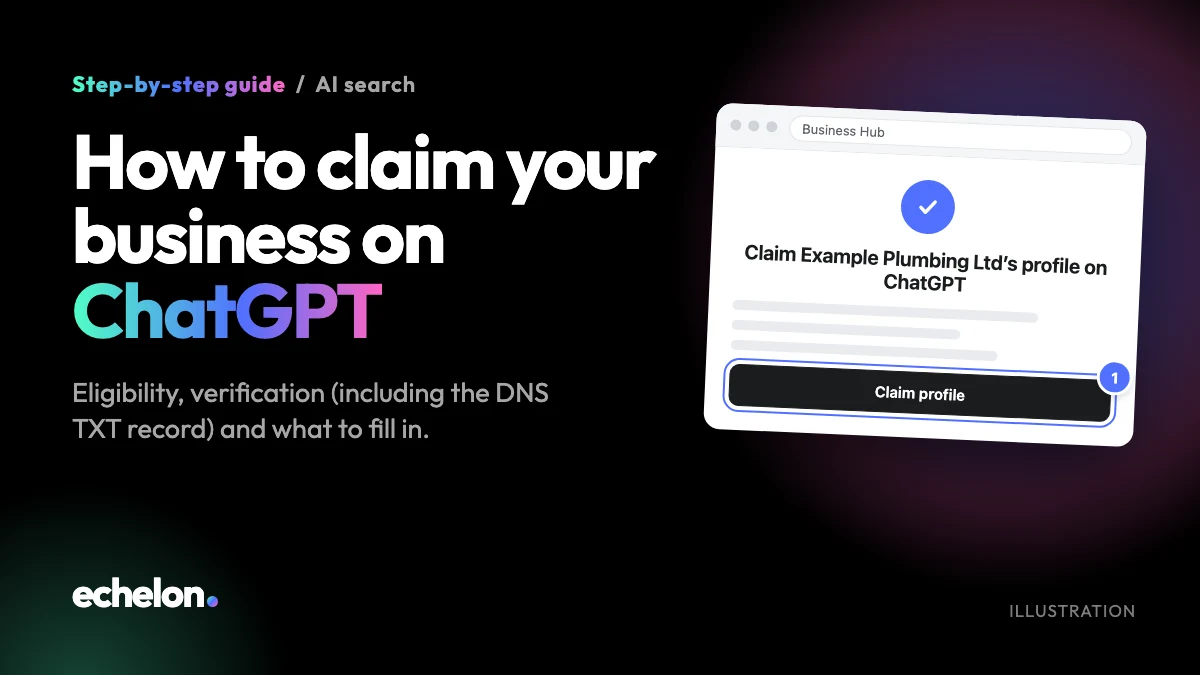
Short answer: On 10 November 2026, OpenAI launched Businesses in ChatGPT in beta. It lets an eligible business claim a free profile inside ChatGPT through a new Business Hub, correct its details, and see how often it gets mentioned. You claim it by signing in to ChatGPT, finding your business in Business Hub, and verifying you’re authorized to represent it using your business phone, business email, your website’s DNS records, or a connected Shopify store. OpenAI then reviews the claim before you can publish any changes.
This guide walks through who can claim, exactly what to do step by step, how to fix the DNS verification step if it stalls, and how this new feature fits alongside Google Business Profile and the rest of your AI search visibility. We checked every fact against OpenAI’s own pages on 16 November 2026, six days after launch. Because this is a beta feature, details can change, so treat the dates in this guide as a snapshot rather than a permanent reference.
What is “Businesses in ChatGPT” and why does it matter?
ChatGPT is used by over a billion people a week, and a growing number of them ask it for recommendations: “who does X near me”, “what’s a good Y for Z”, “compare these two services”. Until now, a business had no official way to tell ChatGPT what it does, correct a wrong fact, or find out it had been mentioned at all. In OpenAI’s own words for the launch, it gives businesses “a new way to connect with the people who use ChatGPT each week.”
Claiming your business through Business Hub does three things:
- It gives you a verified profile. Once your identity check is approved, your profile shows a blue checkmark, the same signal a verified badge gives on other platforms.
- It lets you correct and add information. Website, description, service or product category, logo, delivery and return policy, and a cover photo. For retailers, you can also upload a product feed with pricing and availability.
- It gives you insight data. Business Hub shows aggregated mentions and website clicks from the last 28 days, plus “discovery topics”, the themes in conversations where your business came up.
Eligible ecommerce and online service businesses in the US can go a step further and build a Business Agent, a conversational assistant that answers product and policy questions inside ChatGPT. That part is US-only for now. The core claim, correct and monitor feature is not restricted to the US in OpenAI’s own wording, though availability still depends on your business’s location and type (more on this below).
One important point OpenAI is explicit about: claiming does not guarantee a higher placement or more sales. ChatGPT keeps making independent recommendations and comparisons. What claiming buys you is accuracy and visibility into how you’re being talked about, not a shortcut past everyone else.
Is this the same as “ChatGPT Business”?
No, and this trips a lot of people up because the names are so close. ChatGPT Business is OpenAI’s paid workspace subscription for teams, priced per seat per month, separate entirely from the free business claim this guide covers. Businesses in ChatGPT (what you reach through Business Hub) is the free feature that lets any eligible business claim and manage a public profile. You don’t need a ChatGPT Business subscription, an Ads account, or an Enterprise agreement to claim your business profile.
Who can claim, and what you need before you start
According to OpenAI’s Help Center, you can claim a business if you own it or are authorized to represent it. You’ll need to verify that connection and be approved before you can publish any changes.
Before you start, have ready:
- Access to one of the verification methods: your business’s phone number, a business email address, access to your website’s DNS settings, or a Shopify admin login.
- A government-issued ID and basic business registration details, for the identity check later in the process (OpenAI uses a third-party service called Persona for this).
- Access to edit your website’s DNS records if you plan to verify by domain, or know who manages them for you (your web host, IT provider, or an agency like us).
One honest caveat worth flagging. OpenAI’s own setup guide says: “Local stores and restaurants can currently claim only an existing U.S. listing.” It doesn’t publish a full country-by-country list, but that one sentence is the clearest signal available: if you run a physical shop, café, or restaurant outside the US, Business Hub may not yet show you an option to add a new listing. Claiming is also described as “initially available to eligible businesses with a website.” If you’re a UK business that operates through a website, which covers most trades, agencies, consultancies, retailers, and professional service firms, the practical advice is simply to try Business Hub and see what options it shows you, since OpenAI determines eligibility automatically by industry, location, and its own checks.
How to claim your business on ChatGPT: step by step
The pictures in this guide are simplified illustrations with example details (Example Plumbing Ltd, example.co.uk), not screenshots, so the real screens may look a little different. The steps and button names follow OpenAI’s own Help Center.
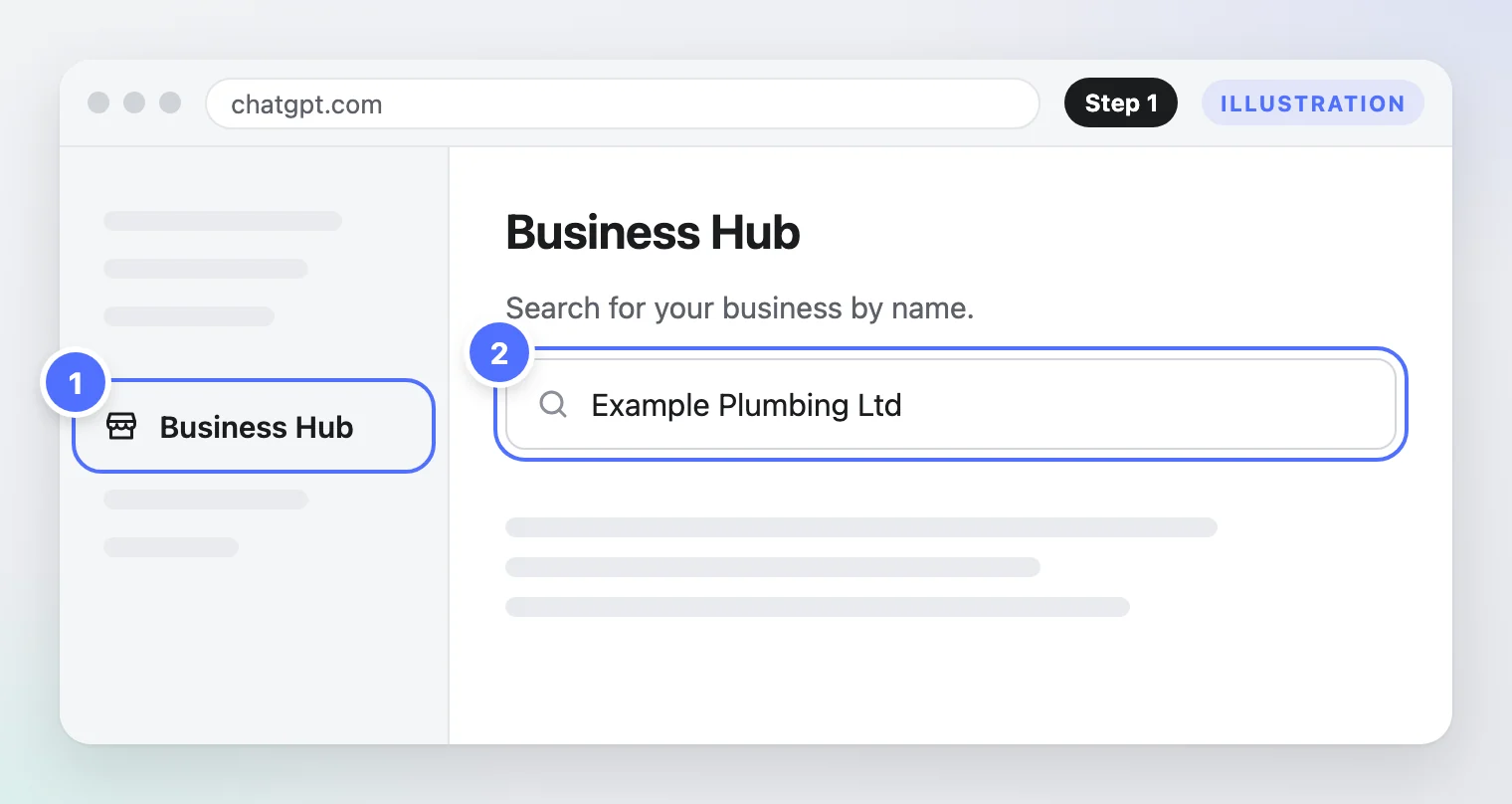
- Sign in to ChatGPT and open Business Hub from the sidebar. Search for your business by name.
- Select the listing that matches your business, then confirm which ChatGPT account you’ll use to manage it.
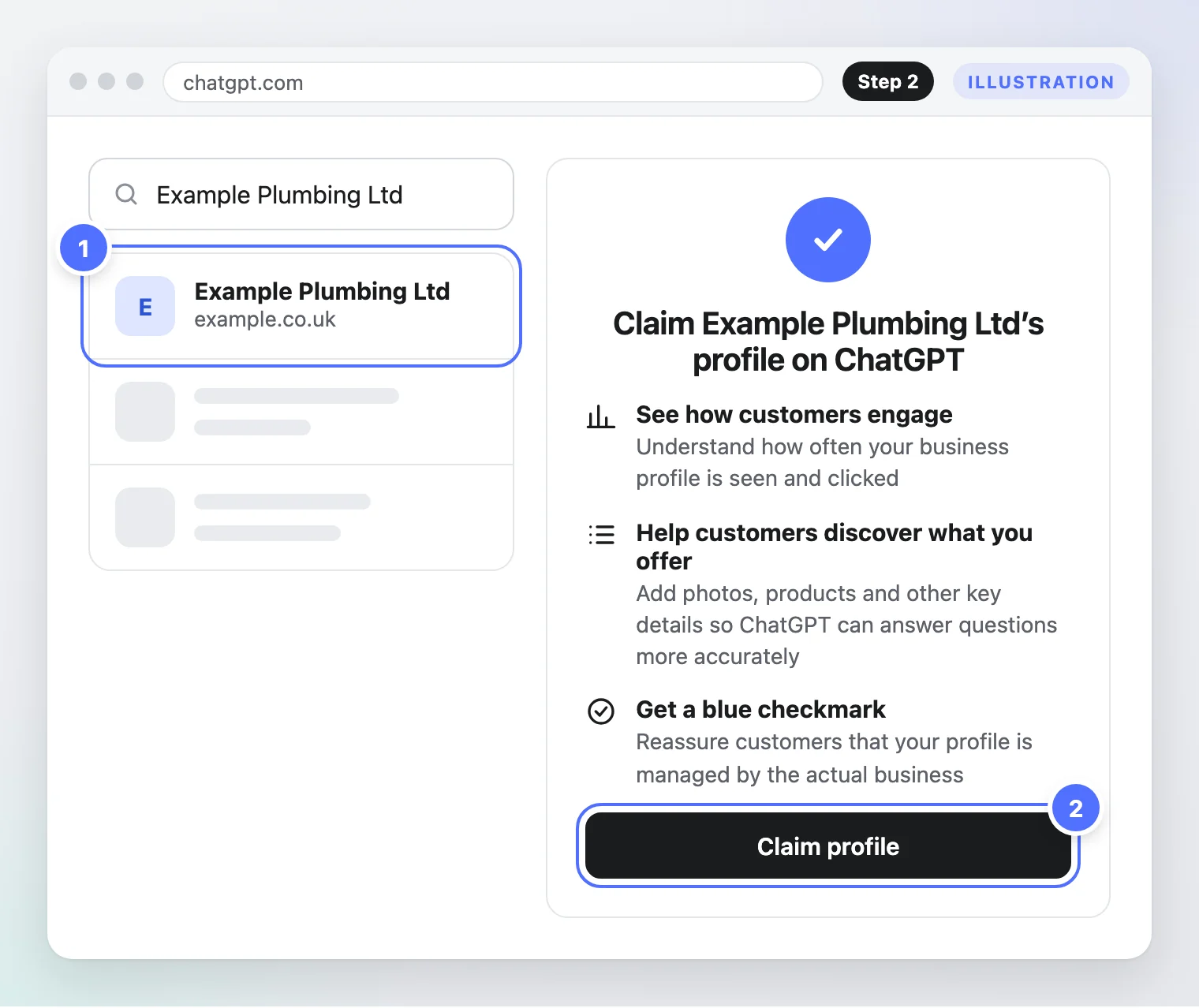
If you received a personal claim invitation by email, open that link instead and sign in with the email address that received it. If you see “Contact support”, your listing is locked and you’ll need to request help. If you can’t find your business at all, an eligible online business may see an option to add it; local shops and restaurants currently can only claim an existing US listing (see the caveat above).
- Choose a verification method. Business Hub offers a mix of business phone, business email, website domain, or Shopify, depending on what it can confirm about your business.
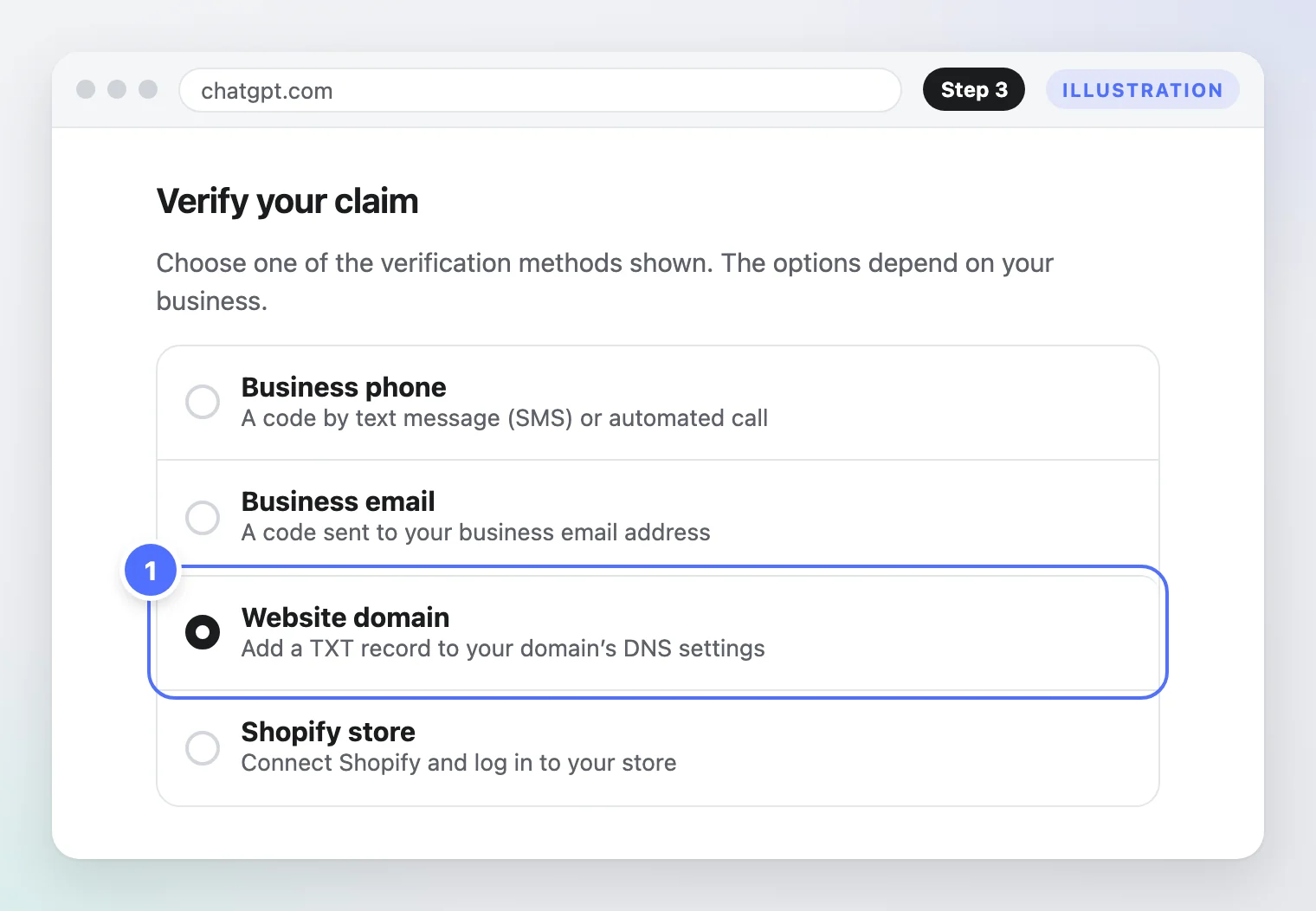
Verifying by business phone or email
Select Business phone, then choose a text message or an automated call, and enter the code you receive. Or select Business email, request a code, and follow the steps in the email sent to your business address. These are usually the fastest routes if either is available to you.
Verifying by website domain (DNS TXT record)
This is the method Echelon Media is using for echelonmedia.co.uk, verified through Cloudflare.
- In Business Hub, select Website domain. ChatGPT shows you the TXT record to add: a type, a name or host, and a value.
- Log in to your domain’s DNS settings. For most UK businesses this is one of: Cloudflare, GoDaddy, 123-Reg, IONOS, or Namecheap, depending on who manages your domain.
- In Cloudflare: go to your domain, open DNS > Records, select Add record, choose type TXT, paste the exact name/host ChatGPT gave you, paste the exact value, and save.
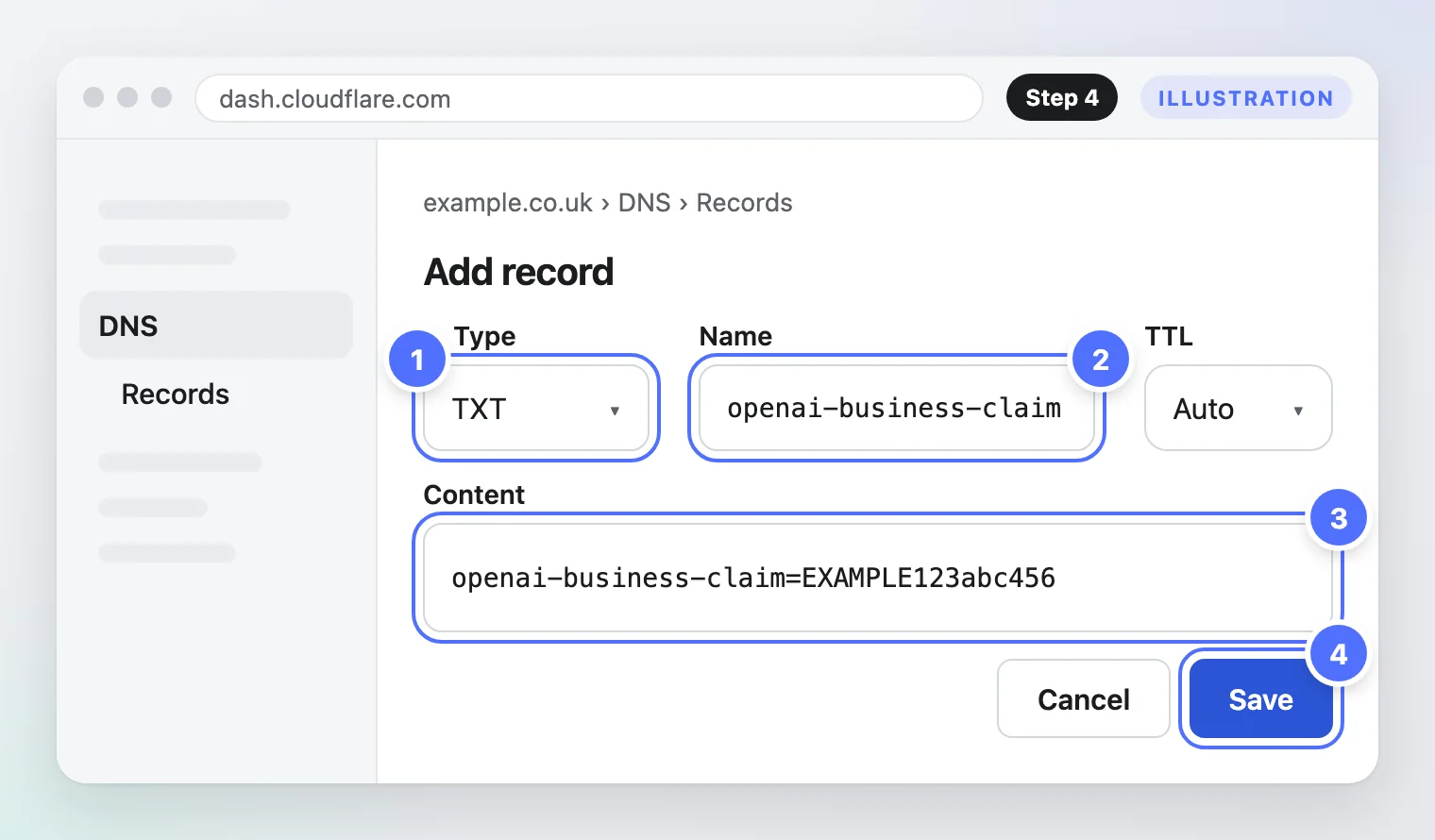
- On other hosts: the steps are the same in principle, though the menu names differ. On GoDaddy it’s under DNS Management > Add > record type TXT. On 123-Reg it’s Domain Names > Manage DNS > Add Record. On IONOS it’s Domains > DNS > Add Record. Copy the type, name/host, and value exactly as shown in ChatGPT; one wrong character and the check will fail.
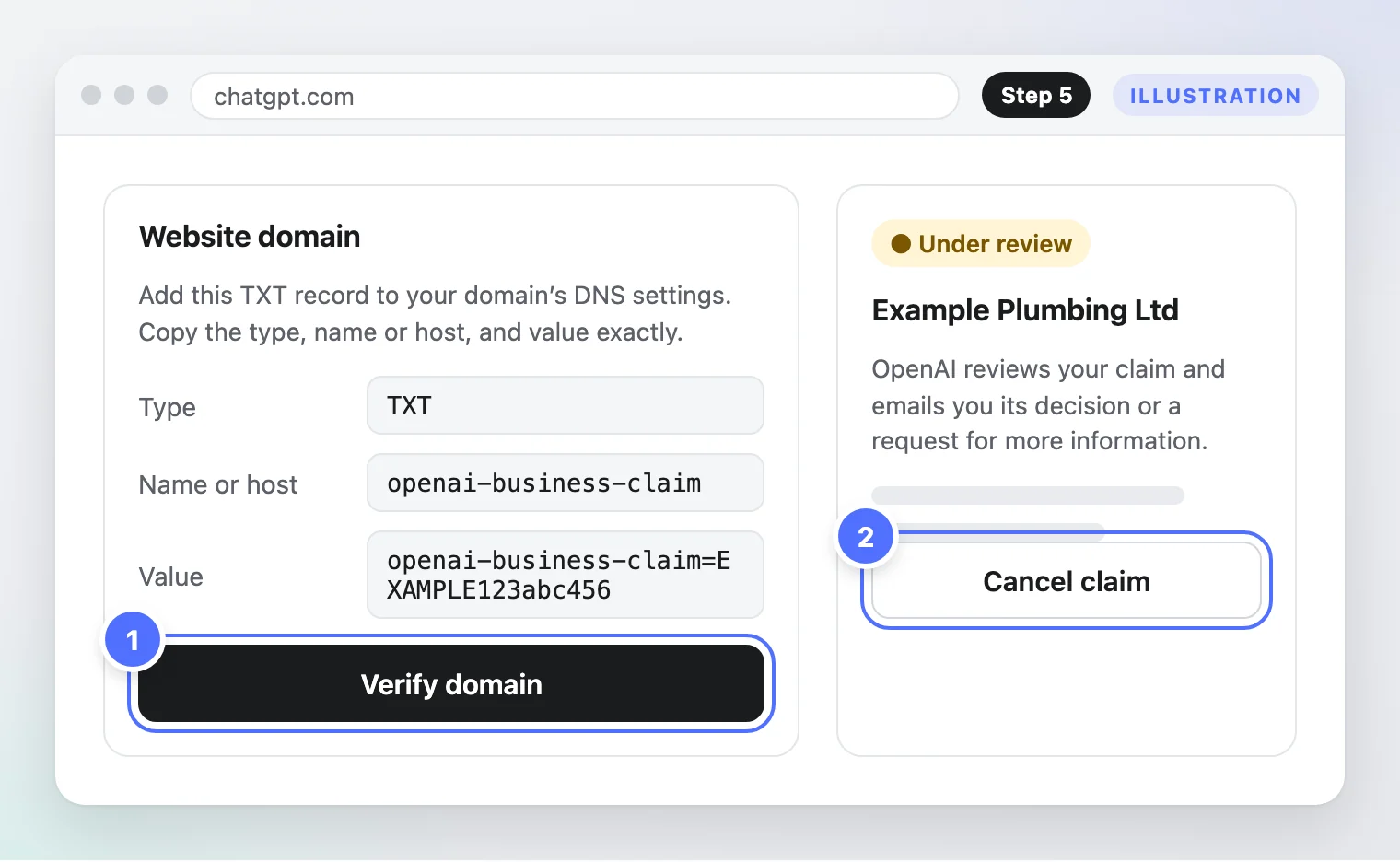
- Return to ChatGPT and select Verify domain. DNS changes can take time to spread across the internet, so if it doesn’t verify immediately, wait and try again rather than adding a second conflicting record.
Verifying with Shopify
Select Shopify store, then Connect Shopify, review the permissions, and log in to the Shopify store for the business you’re claiming. Shopify merchants can also start this from their Shopify admin instead of ChatGPT. Eligible Shopify product catalogues are already integrated into ChatGPT, so this route can also set you up to share pricing and availability automatically.
Wait for approval
Once you’ve chosen and completed a verification method, OpenAI reviews the claim and emails you its decision, or asks for more information. You can cancel the request while it’s pending. There’s no published turnaround time yet, so treat this as a “could be quick, could take a few days” step rather than something with a fixed deadline.
Complete identity verification with Persona
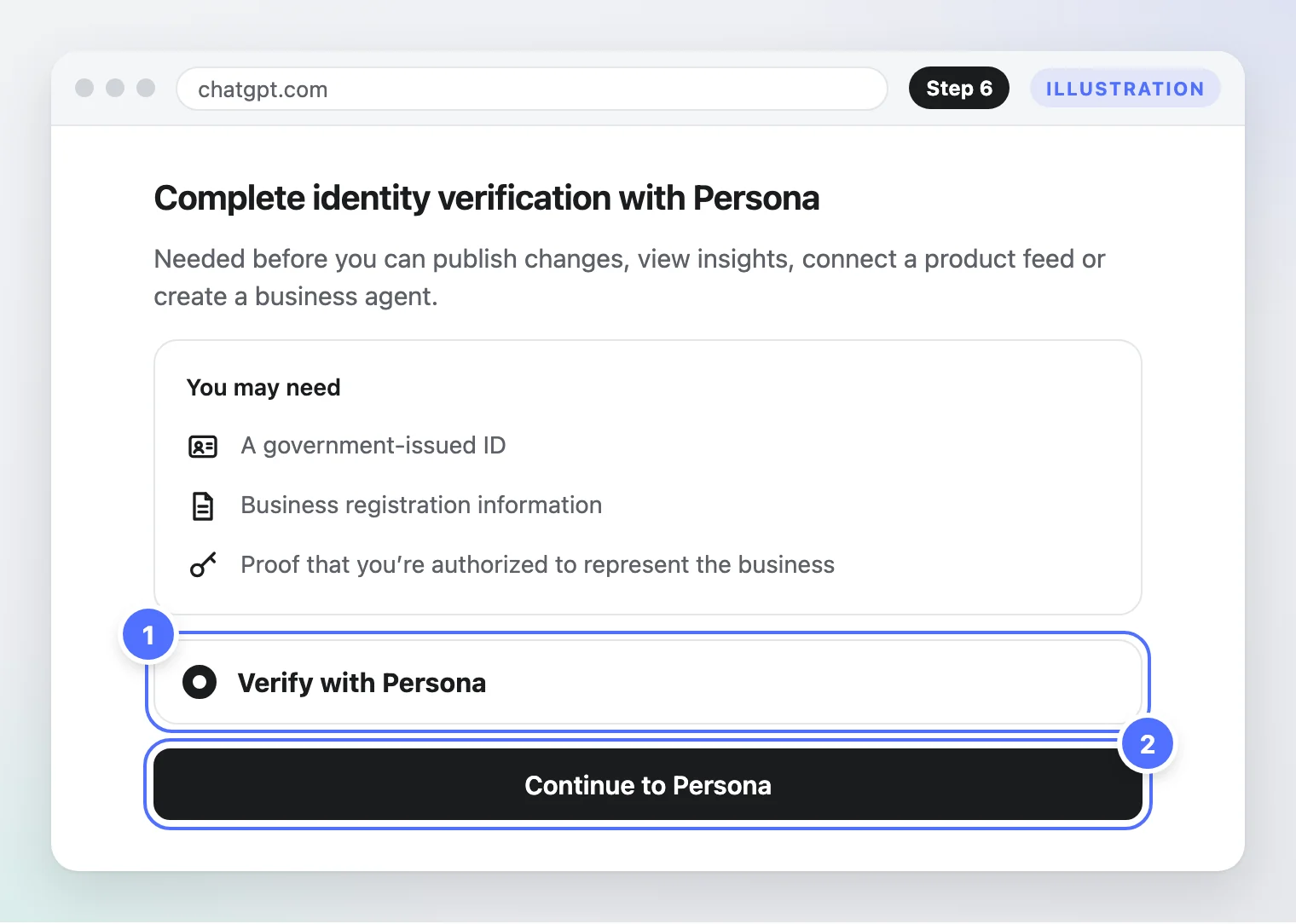
Being approved to claim your profile is not the same as getting the blue verified checkmark. For that, and before you can publish information changes, view insights, connect a product feed, or build a Business Agent, you need to complete identity verification with a service called Persona, using a government-issued ID and proof that you’re authorized to represent the business.
Update your business information
Once your claim and Persona verification are both approved, open your profile under the Business tab to fill in or correct your website, description, category, logo, delivery policy, return policy, and an optional cover photo.
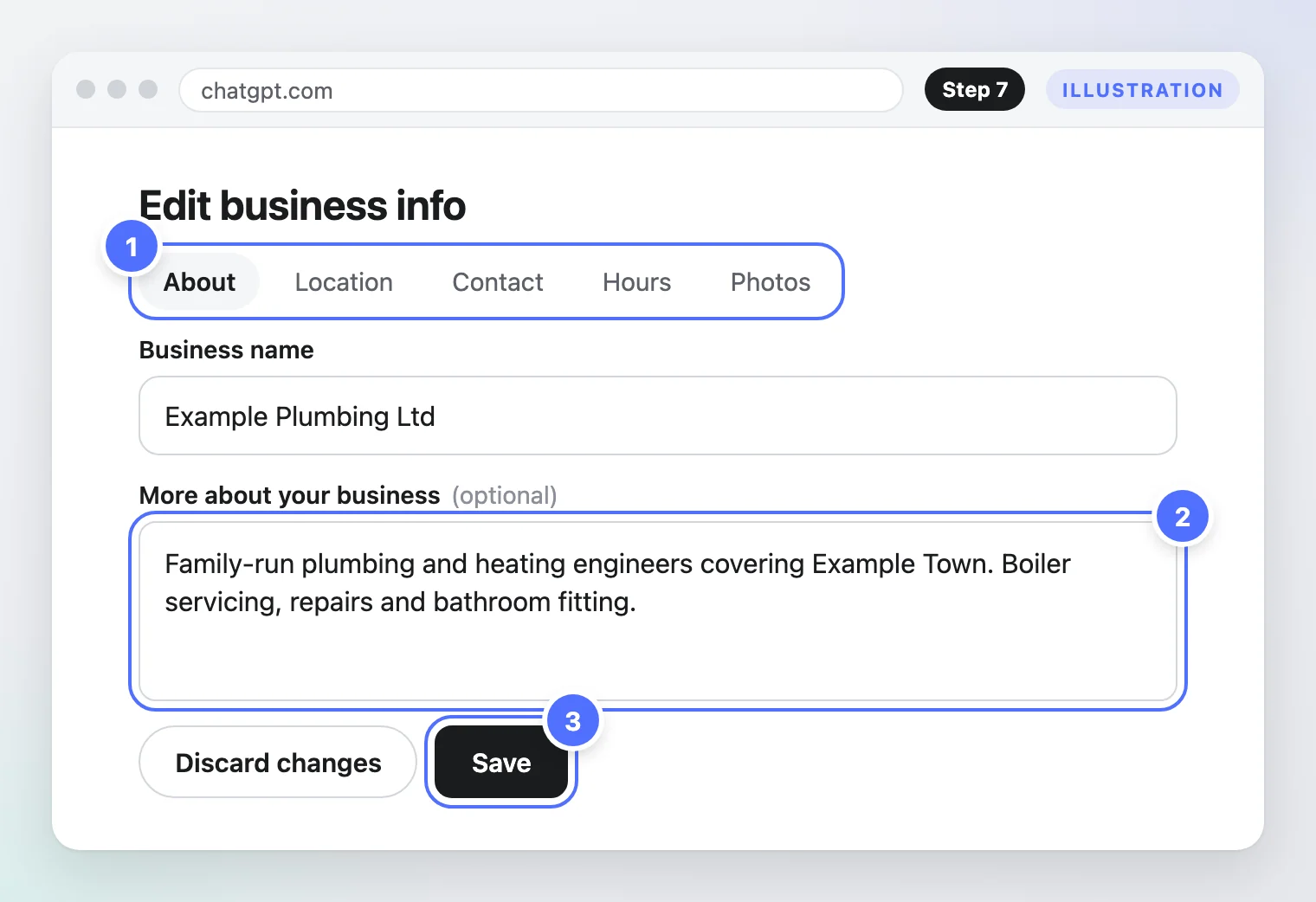
OpenAI reviews and publishes changes, and updates can take time to appear in a listing or in an actual ChatGPT answer, since ChatGPT can also draw on other sources about your business.
Optional: build a Business Agent (US ecommerce and online service businesses only, for now)
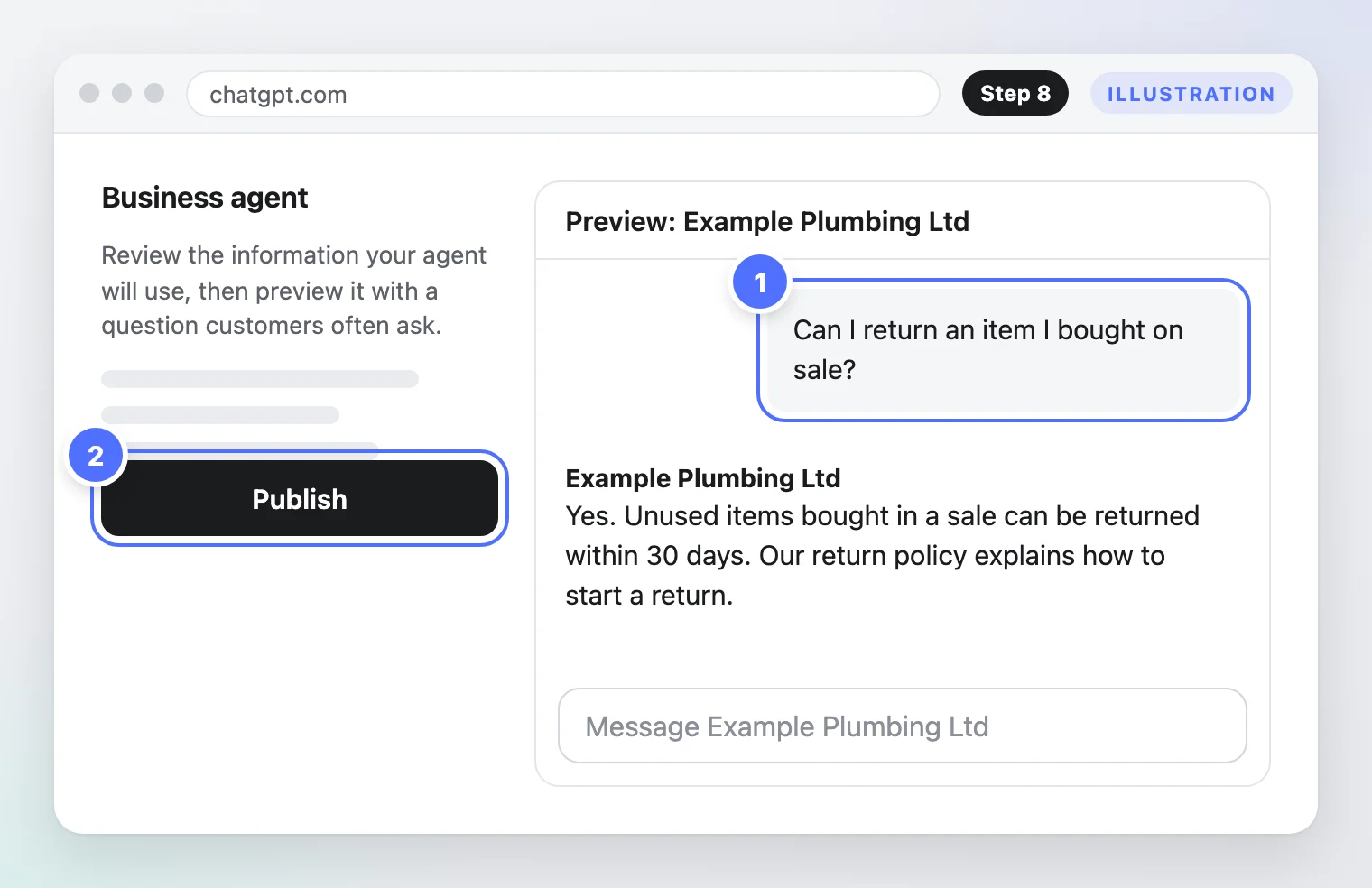
If your business is eligible, you can preview and publish a Business Agent that answers customer questions using the information you’ve provided. This is currently limited to ecommerce and online service businesses in the US, so most UK businesses won’t see this option yet.
Verification troubleshooting
- “Verify domain” fails after I added the TXT record. Check the name/host and value were copied exactly, with no extra spaces. DNS changes aren’t instant; wait a while before retrying rather than adding a second record on top of the first.
- “Contact support” appears instead of a claim option. Your listing is locked, usually because someone else has already interacted with it. Use the Contact support link in that screen.
- Someone else has already claimed your business. Open the profile, select the three-dot menu, and choose Dispute ownership. You’ll need to verify through Persona that you’re authorized to represent the business. Disputing or claiming a profile doesn’t change its visibility in ChatGPT either way.
- My business doesn’t show up at all. If you run an eligible online business, check for an option to add it. If you’re a local shop or restaurant outside the US, this may not be available to you yet (see the caveat earlier in this guide).
- I can’t see an option to create a Business Agent. Check you’re on the claimed, Persona-verified profile. You can’t build an agent while verification is pending or has failed, and it’s currently limited by location and business type regardless.
What to fill in to get recommended
Claiming your profile doesn’t automatically make ChatGPT recommend you. What it gives you is control over your own facts. From here, the things that actually improve your chances of being mentioned are mostly the same things that improve any AI search visibility:
- Keep your business description, category and website accurate and specific, not generic.
- If you sell products, connect a feed so pricing and availability are correct.
- Make sure your own website clearly and plainly answers the questions customers actually ask you, in normal paragraphs and headings, not hidden behind logins or heavy scripts.
- Keep your business name, address and phone number consistent everywhere else you’re listed: your website, Google Business Profile, directories and review sites. Inconsistent details make any AI system less confident about which business you are.
- Build up genuine reviews and mentions elsewhere. ChatGPT, like other AI tools, draws on the wider web, not just your claimed profile.
This is the same ground our guide to AI SEO and our guide to ranking in AI Overviews cover in more depth. Claiming your ChatGPT profile is one input into that wider picture, not a replacement for it.
How this fits with Google Business Profile and GEO
Claiming your business on ChatGPT sits alongside, not instead of, the other places your business needs to show up correctly. Google Business Profile still matters hugely for Google Search and Maps. Bing Places matters because ChatGPT and several other AI tools draw on Bing’s index for some of their live web results. None of these replace the others, and none of them replace having a clear, accurate, well-structured website, which is what Generative Engine Optimization (GEO) is really about.
| ChatGPT business claim | Google Business Profile | Bing Places for Business | |
|---|---|---|---|
| Cost | Free | Free | Free |
| Launched | Beta, 10 November 2026 | Established, many years running | Established, many years running |
| Who can claim | Businesses with a website, where ChatGPT is available; local shops/restaurants currently US-listing only | Any business with a physical location or service area, almost anywhere Google Search operates | Any business with a physical location or service area |
| Verification methods | Business phone, business email, website DNS (TXT record), or Shopify | Phone, text, email, video call, or postcard by mail, assigned automatically by Google | Phone, email, or mail/postcard, depending on what the system can confirm |
| Identity check | Persona (government ID), separate from the initial claim | Built into the verification step itself | Built into the verification step itself |
| What you can edit | Description, category, website, logo, delivery/return policy, product feed | Name, address, hours, photos, posts, products, reviews replies, and far more | Name, address, hours, photos, and category |
| Where it shows up | Inside ChatGPT answers and your ChatGPT profile | Google Search, Google Maps, and the knowledge panel | Bing Search and Bing Maps |
Common mistakes
- Treating this like Google Business Profile. It’s newer, narrower, and the eligibility rules are still being worked out. Don’t assume every feature you’re used to on Google will exist here yet.
- Mixing up ChatGPT Business and Businesses in ChatGPT. One is a paid team subscription. The other is the free business claim. They’re entirely separate.
- Copying and pasting the TXT record wrongly. A trailing space or a missed character is the most common reason domain verification fails.
- Expecting an instant recommendation boost. OpenAI is explicit that claiming doesn’t guarantee higher placement. Treat it as getting your facts straight, not as advertising.
- Forgetting to finish Persona verification. Your claim can be approved without the blue checkmark appearing. You need the separate identity check before you get it.
- Only fixing your ChatGPT profile and nothing else. If your own website is thin, out of date, or inconsistent with your other listings, correcting one profile won’t carry much weight.
Frequently asked questions
Do I have to pay to claim my business on ChatGPT?
No. Claiming your business through Business Hub is free. It’s separate from ChatGPT Business, which is OpenAI’s paid team subscription, and separate from ChatGPT Ads. You don’t need either of those to claim your profile.
How can I get ChatGPT to recommend my business?
Claiming your profile and keeping its information accurate is a good first step, but OpenAI is clear that claiming alone doesn’t guarantee a recommendation. ChatGPT continues to make independent recommendations based on the wider web, so your own website, consistent business details everywhere you’re listed, and genuine reviews all still matter.
Does claiming my business guarantee ChatGPT will recommend me?
No. OpenAI states directly that ChatGPT continues to make independent recommendations and comparisons, and that claiming your business doesn’t guarantee higher placement or sales.
How long does ChatGPT business verification take?
OpenAI hasn’t published a fixed timeframe. After you submit a verification method, OpenAI reviews your claim and emails you a decision or a request for more information. Identity verification through Persona is a separate review step with its own timeline.
What if someone has already claimed my business on ChatGPT?
Open the profile, select the three-dot menu, and choose Dispute ownership. You’ll need to verify through Persona that you’re authorized to represent the business before the dispute can be resolved.
What happens if I don’t claim my business on ChatGPT?
Nothing penalizes you for not claiming. ChatGPT can still mention your business using information it finds elsewhere on the web. Claiming simply gives you a way to correct and add to that information, and to see how often you’re mentioned.
Want help with this and the bigger AI search picture?
Claiming your ChatGPT profile is a sensible half hour of work. Making sure ChatGPT, Google’s AI Overviews, and every other AI tool consistently find and recommend your business is a bigger job, and it’s what our GEO service is built for. Get in touch if you’d like us to handle the claim, the verification, and the wider AI search strategy around it.